

| Hitachi Data Systems Hitachi, Ltd. | |
|
|
|
Logging in for the First TimeWhen you installed the Hi-Track RACC application, you were prompted to supply a port for the internal web server to use. The range of valid ports you were given was 8075 through 8081. The default port was 8080. To access the Hi-Track RACC application, bring up your web browser and enter a URL similar to http://localhost:8080 If you specified a port other than 8080, substitute the 8080 in this URL for the port that you specified.1
The first time you log into Hi-Track RACC, use the user name Administrator. The default password for the built-in Administrator account is hds. 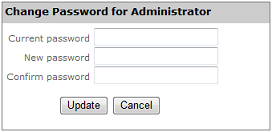
Once you have logged in under the Administrator account, the first thing you should do is change the password for the Administrator account. In the upper right-hand corner of your browser window (just under the Hitachi logo) is a link labeled Change password. Click this link to proceed to the Change Password page. Enter the current password in the top field of the Change Password panel and the new password in the next two fields. Now, logged in as the Administrator you have full access to all areas of the Hi-Track RACC application. Subsequent LoginsThe login panel identifies the current authentication mechanism employed by the RACC application. If it displays Local Repository , the RACC application queries an internal database to validate users and retrieve their group membership. On the other hand, if it shows Active Directory , the RACC system contacts a remote active directory server to authenticate users and obtain their RACC group membership. 1. Occasionally you will encounter a system that cannot resolve the hostname localhost. In this case, consider adding an entry to the system's host file for localhost or use the IP address 127.0.0.1 instead. |
 After you have entered the URL into your browser and brought up the Hi-Track RACC
application, you are presented with a familiar login panel like the one pictured
here.
After you have entered the URL into your browser and brought up the Hi-Track RACC
application, you are presented with a familiar login panel like the one pictured
here.