Video Playback on the 320/540
|
|
Video Playback
on the 320 and 540
visual workstations
QuickTime
Overview
The 320 and 540 ship
with a playback component in QuickTime (QT). This component, known as the
Video Output, allows a QT movie to be played back to a video output jack.
The video output component controls the setting and ownership of the video
output, and instructs QT to use our decompressor component as the last
one in the chain to the final destination of a video output jack.
Supported Application and
Example Program
When QuickTime is selected
in the general information dialog, a QuickTime movie is only played
back to the source and destination windows. To have your SGI QuickTime
CODEC video clips play on the NTSC/PAL monitor instead of your desktop
VGA monitor, you will need to add a setting to Premiere's initialization
file. Make sure you have Premiere 5.1 or later.
1. In the Premiere folder
(default path is C:/ program files/adobe/premiere 5.1), open the file "Prem50.ini"
if it exists. If the file does not exist, open any text editing program,
such as WordPad, and create a new empty text file named "Prem50.ini"
2. Add the following text
to the file. Capitalization and carriage returns are important.
[proxy]
use_video_out='SGVO'
3. Save the file into the
Premiere application folder and restart Premiere.
IMPORTANT: With this setting
turned on, video clips using SGI QuickTime CODECS will play to the NTSC/PAL
monitor only; the VGA monitor will not update since the video is being
redirected. You will only get still frame updates in Premiere's monitor
and clip windows when the video is not playing and you toggle window focus.
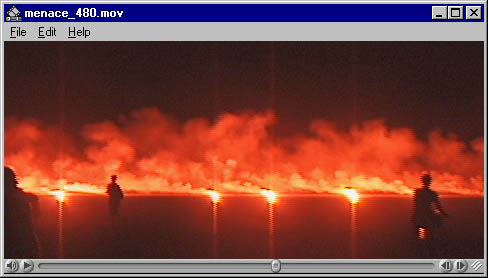
The QT
video output player (QuickTime 4 users need a update found in the
tools section) is an example program to play a movie to the video output
jack. This example was modified from Apple's simple player source
code. It behaves very much like the QuickTime movieplayer. But instead
of sending the video to the screen, it sends the video to the video output
jack. Once you open a QuickTime movie inside the QT video output player
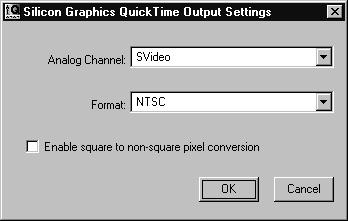
window, the SGI QuickTime Video Output Control Panel will pop up for you
to choose the video output jack and the video timing. After you click Ok
or Cancel button in the control panel, the movie will be sent to the video
output jack once you click the play button at the bottom left corner of
the main window.
SGI QuickTime Video
Output Control Panel
-
Enable Square to Non-square conversion
-
If the check box is checked,
a movie in square size (640*486 in NTSC or 768*576 in PAL) will be scaled
to the non-square CCIR601 size in the video output.
-
If the check box is not checked,
a movie in square size will be shown in the video output as its original
size.
Supported Features and Formats
On 540 with SD1100
option card, we support not only all of the functions listed in the control
panel but also simultaneous playback to two independent video channels.
-
Uncompressed Formats
-
|
FourCC Codes
|
Pixel Formats
|
| '2vuy' |
CbYCrY |
| 'ABGR' |
32-bit ABGR |
| 'BGRA' |
32-bit BGRA |
| 'raw ' 32-bit |
32-bit ARGB |
| 'raw ' 16-bit |
16-bit big endian RGB 555 (Mac) |
| 'L555' |
16-bit little endian RGB 555 (PC) |
| '5551' |
16-bit SGI's RGBA5551 |
| 'raw ' 8-bit |
8-bit gray |
| 'UYVY' AVI files |
CbYCrY |
| 'DIB ' AVI files |
32-bit and 16-bit BGRA |
-
Compressed Formats
-
|
FourCC Codes
|
File Formats
|
| 'jpeg' |
Photo JPEG |
| 'mjpa' |
Motion JPEG A |
| 'dvc ', 'dvcp' |
DV |
| 'JPEG' |
AVI Photo JPEG |
The JPEG and DV are Silicon
Graphics optimized software modules installed on all base model configurations.
Caveats and Known Bugs
-
qtvoutplayer Example Program
-
The video doesn't send to the
screen window.
-
Opening another movie file requires
closing the current program and re-running it again.
-
Video
for Windows
Overview
Video for Windows
(VFW) does not specify a video output architecture like QuickTime does.
However, a de facto standard for video output implementation evolved
where video output is done through video decompression modules.
Windows recognizes some RGB
formats as uncompressed and most other formats as "compressed". VFW
Applications that play compressed AVI files to the computer screen call
the video decompression modules to decompress the data to RGB.
Since most PC video boards capture in compressed formats, they often implement
their modules to send the data to the video output jack while decompressing.
SGI has several decompression
modules for decompressing AVI files in Motion JPEG, Photo JPEG, and 16-bit
UYVY formats. Currently, only the UYVY module plays back to video
output. The following discussion pertains to the UYVY module only.
Note that SGI's quicktime
output component supports playing back AVI files as well as QuickTime MOV
files, so if the user needs to play back Photo JPEG AVI files to video
output, he/she can do so using QuickTime applications.
Implementation
VFW applications
send messages to the modules to perform decompression, one message per
video frame. There are two types of messages: ICM_DECOMPRESS &
ICM_DRAW. The first is where Windows is responsible for drawing the
decompressed buffer to the computer screen. The second is where the
application instructs the decompressor module to do the drawing directly.
The UYVY module sends the data to the output jack on the DRAW messages
only. Therefore, any application that calls the DRAW messages can
play UYVY AVI files to video output.
We do not play to video out
on DECOMPRESS messages mainly because Windows, which is responsible for
drawing to the screen in these cases, does not do it in real time, causing
video output to drop frames.
-
Why do some applications play
to video out while others do not?
One side effect of
not playing to video out on DECOMPRESS messages is that applications which
do not use the DRAW messages cannot play video to the output jack.
Unfortunately, because there is no standard on which message to use, applications
perform differently from each other, and differently on different video
boards.
-
Applications that we have tested
Media Player (mplay32.exe),
which ships with standard Windows NT 4.x, can send the AVI file video output.
However, we found that the version shipped with the DirectX Media SDK has
better file I/O performance. Go to the DirectX
page to get the SDK.
Adobe Premiere 5.x uses both
DECOMPRESS and DRAW messages. It uses the DRAW message while playing
AVI files from the timeline, which causes the video to be sent to the output.
III. Features
-
VFW Video Output Dialog Box
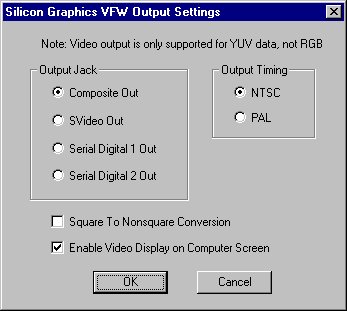
There are two ways to get
to the VFW Video output dialog box. One is to pop up the Multimedia
applet in the Control Panel, go to the Devices tab, Expand the list of
Video Compression Codecs, and click on the Properties for SGI YUV-RGB Codec.
A second way is to launch any VFW capture application and get to the VFW
Settings Dialog, and there is a Video Output button for launching the Video
Output Dialog Box.
In the dialog box,
users can specify which output jack to use and whether to turn off drawing
to the screen while playing back to video output, as well as video timing
& square/non-square pixels options, discussed in the following section.
-
Video timing & Square/Non-square
Pixels
AVI files do not
store video timing information or square/non-square pixel information.
Hence it is up to the user to specify how the UYVY module should interpret
the AVI file. The user can specify these options in the video output
dialog box.
-
Interleaved Frames vs. Non-interleaved
Fields
The UYVY component
assumes that the AVI data is in interleaved format.
There are several
restrictions on the size of the video. The largest width supported
is 768 pixels per line, for square PAL video. The width also must
be divisible by 4 for hardware alignment. The height must be even
because for odd heights, it is ambiguous which field has the extra line.
One exception being 487 lines for NTSC, which is well-defined such that
Field 1 has the extra line. The largest height supported for NTSC
is 487; for PAL, it is 576. For sizes less than full active frame,
the video is centered in the raster.
IV. Caveats and Known Bugs
-
Performance for Playing to Video
Output
Internal testing
shows that the UYVY module can play to video output in real time if the
video frames are passed down from the applications fast enough. However,
many applications do not perform the file reading and parsing the video
frame optimally, thus causing frames to drop on video output. One
possible solution is disabling the Graphics Display option in the VFW output
dialog. The graphics display is not the bottleneck, but it may speed
the playback enough in some cases.
Sometimes, the same applications
can play back other AVI files to video output in real time on other PC
video boards. This is because the AVI files being played back are
either JPEG or MPEG and thus much smaller, so it does not need the file
reading to be as fast.
-
Performance for Playing to Computer
Screen
If the application
uses DECOMPRESS messages to draw to the computer screen, the playback might
not be in real-time even if the file reading is done in real-time.
This is because the 320/540 frame buffer format does not match the Windows
default RGB format, forcing Windows to perform software byte-swapping after
the decompression. There is no workaround for this problem because
Windows does not allow the decompressing module to decompress into the
frame buffer format directly.
The UYVY module also
is capable of compressing uncompressed RGB AVI files to UYVY. However,
this conversion is not optimized for speed. It is meant as
a post-processing step to allow users to convert uncompressed AVI files
to UYVY in order to play it back to video output. Users should not
try to capture BGRA and use the module to compress it while capturing;
they are likely to drop frames. The better method is to capture in
16-bit UYVY directly.
The current release supports
compressing 32-bit & 16-bit default Windows RGB files; the next release
will also support 24-bit default Windows RGB files. (It is possible
to specify RGB AVI files where the order of the R, G, & B components
are different from the default. Since most applications do not use
these formats, we do not support them.)
If the user pops
up the Properties dialog for any UYVY AVI file, he/she can click on the
Preview tab and play the file to video output as well. However,
we DO NOT recommend this method. Windows does not clean up properly
after user exits the dialog, which ties up the video resources such that
any subsequent attempt to do video output might fail. (Another side
effect is that the user will not be able to modify the file because Windows
thinks it is still in use). The only workaround is to log out and
log back in.
When the user exports the rendered movie
as an AVI file, the SGI RGB-YUV Codec does not appear on the list of compressors.
This is because 3D Studio MAX is requesting an RGB pixel format that is
unsupported. The support has been added, and the new codec will be
available in the next software release.
-
Premiere 5.1 and Print-To-Video
For this and other Premiere issues, please
go to the Premiere FAQ page.
Media
SDK
We also have a Media
SDK for developers interested in adapting their applications specifically
for the 320 and 540. Please go to the SDK
page for more information.
Back
To Index |
|
Last Updated
Tuesday, 01-Jun-99 02:48:43 GMT
|
