
The organization you work for is evaluating a customized ELK stack as a SIEM solution to enhance its intrusion detection capabilities. The SOC manager tasked you with getting familiar with the ELK stack and its detection capabilities. He also tasked you with translating common attacker behavior into ELK searches.
\nNote: Credits to Teymur Kheirkhabarov for the dataset this lab uses and some of the detection techniques covered.
\nThe learning objective of this lab, is to get familiar with ELK stack's architecture and detection capabilities.
\nElastic's ELK is an open source stack that consists of three applications (Elasticsearch, Logstash and Kibana) working in synergy to provide users with end-to-end search and visualization capabilities to analyze and investigate log file sources in real time.
\nELK's architecture, at a high level, is the following.
\n
On demanding/data-heavy environments, ELK's architecture can be reinforced by Kafka, RabbitMQ and Redis for buffering and resilience and by ngnix for security.
\n
Let's dive into all of ELK's components.
\nElasticsearch is a NoSQL database based on the Lucene search engine and built with RESTful APIs. It is essentially the index, store and query application of the ELK stack. It provides users with the capability to perform advanced queries and analytics operations against the log file records processed by Logstash.
\nLogstash is the tool responsible for the collection, transformation and transport of log file records. The great thing about Logstash is that it can unify data from disparate sources and also normalize them. Logstash has three areas of function.
\nProcess input of the log file records from remote locations into a machine understandable format. Logstash can receive records through a variety of ways such as reading from a flat file, reading events from a TCP socket or directly reading syslog messages. When Logstash completes processing input it proceeds to the next function.
\nTransform and enrich log records. Logstash provides users with numerous methods to make changes to the format (and even content) of a log record. Specifically, filter plugins exist that can perform intermediary processing on an event (most of the times based on a predefined condition). Once a log record is transformed Logstash processes it.
\nSend log records to Elasticsearch by utilizing any of the output plugins.
\nNote: Beats is an additional download that should be installed in every remote location for its logs to be shipped to the Logstash component.
\nELK's Search:
\nAs incident responders, chances are that we will spend the majority of our ELK-time inside Kibana. For this reason, we will focus on submitting searches through Kibana.
\n
[x] Kibana searches are usually formatted as FieldName:SearchTerm. Fields and search terms are case sensitive.
\n[x] Boolean operators like AND, OR are supported (and are sometimes implied).
\n[x] Wildcards and free text searches can be used, but use sparingly.
\nIn this lab's context, we will focus on basic Kibana operations and searches that will help you to better organize and analyze what ELK has ingested.
\nELK
\nUse a Firefox browser to connect to Kibana http://demo.ine.local:5601
\nOnce you connect to Kibana you will notice that you are presented with a documents table that consists of two columns only. Add any fields you consider helpful so that you gain a better understanding of the events gathered.
\nExperiment with Kibana's visualizations. First, identify all users included in the dataset and then try to create a visualization that will enable you to quickly identify suspicious or anomalous behavior. Choose any behavior you want to detect.... (for which you have data of course).
\nIt is a known fact that attackers try to blend in by naming their malware like legitimate Windows processes. Create an ELK search to identify this behavior.
\nHint: Obviously such files will not reside where their legitimate counterparts are located, but elsewhere.
\nThe addition of a new service is something worth analyzing. Attackers oftentimes leverage Windows services for both exploitation and persistence purposes.
\nIt is not uncommon to see attacker-derived services interacting with an executable from the Windows folder. Create an ELK search to identify this behavior.
\nHint: Identify Windows Security Log Event IDs and Windows Event IDs related to service creation. Check the following too. https://github.com/palantir/windows-event-forwarding/tree/master/AutorunsToWinEventLog
\nAttackers are known for performing code injection against running processes for exploitation or evasion purposes. Create an ELK search to identify this behavior, leveraging the available data.
\nHint: Carefully go through the following resource (especially the detection part) https://attack.mitre.org/techniques/T1055/. Combine what you read in the aforementioned resource with one related Sysmon Event ID.
\nIt is not uncommon in Windows environments to see services running with SYSTEM privileges. It is also not uncommon to see such services having lax permissions. Specifically, oftentimes untrusted groups (or users) have privileged access to a service or permissions over the folder where the binary of the service is stored.
\nAttackers are known to leverage such lax service permissions to escalate their privileges.
\nHints:
\nFocus on the sc executable (which is related to creating, configuring and deleting Windows services) and the start or sdshow options (used when an attacker wants more granular details about a service's permissions)
\nTo launch their own executable (with higher privileges) attackers will have to tamper with another sc option. Try to think which option is that...
\nBy design, a privileged Windows user who can perform command execution with SYSTEM-level privileges can hijack any currently logged in user's RDP session, without being prompted to enter his/her credentials. This behavior and its root cause are described in the following resource http://www.korznikov.com/2017/03/0-day-or-feature-privilege-escalation.html.
\nCreate a search to identify possible Windows session hijacking through the behavior described above.
\nHint: The Windows executable that attackers leverage to perform the above is tscon.
\nWhen attackers gain access to a system they usually execute commands such as whoami to identify their level of access. You can leverage this attacker routine to detect intrusions.
\nCreate a search to detect the whoami command being executed with SYSTEM-level privileges.
\nBy the time a user logs in to a Windows system the Local Security Authority Subsystem Service (LSASS) process's memory is filled with user and other credentials. As you can imagine, the LSASS process is a process worth monitoring.
\nCreate a search to identify LSASS loading a library not signed by Microsoft.
\nHint: Sysmon contains an Event ID that can assist in monitoring the DLLs being loaded by a specific process.
", "published_date": "2020-10-20T15:32:25Z", "solutions": "# SOLUTIONS\n\n**Kali Machine**\n\n\n\nBelow, you can find solutions for every task of this lab. Remember though, that you can follow your own strategy (which may be different from the one explained in the following lab.\n\n## Task 1: Add any fields you see fit to enhance your understanding of the data\n\nOnce you are connected to Kibana, first change the time picker to **Last 15 years** and then submit an empty search. You should come across the following.\n\n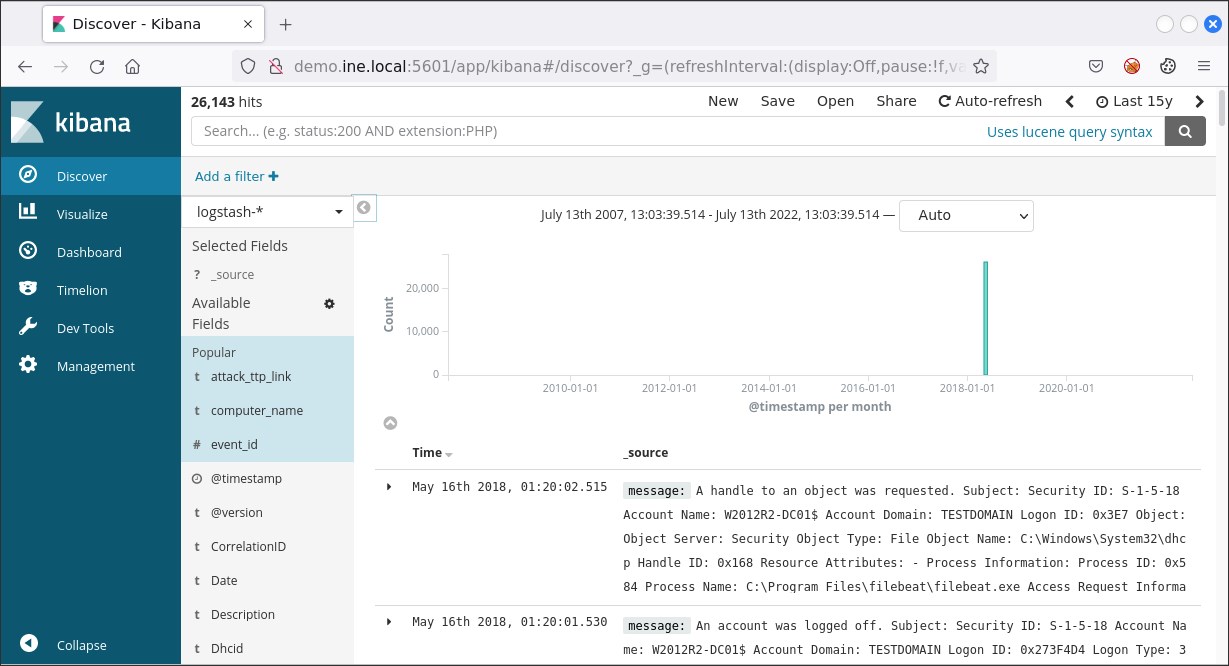\n\n\nAs we can see, the documents (or events if you like) table consists of two columns only. We can enhance our understanding of the gathered events by adding more fields. To do so, we simply click on **Available Fields** and then click the add button that appears next to each field upon mouse hover.\n\n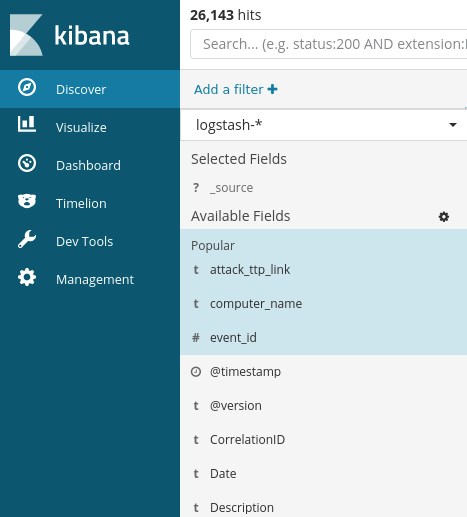\n\nA good start would be adding the **event_id** field and the **computer_name** field. Then, the results will look like the ones depicted below.\n\n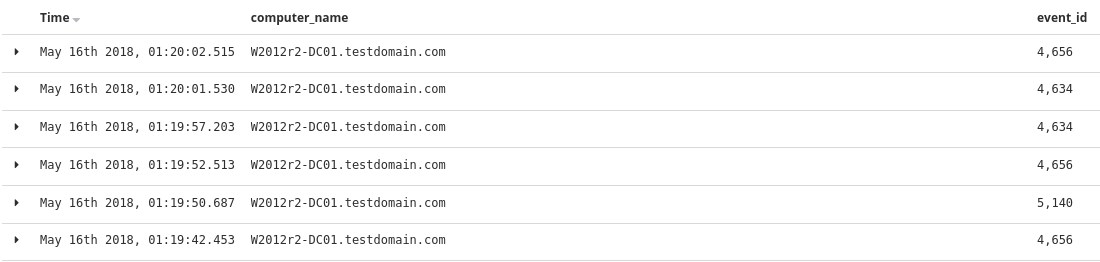\n\nGo through each available field and experiment with how documents/events are presented until you feel comfortable enough to start your analysis.\n\nAt any time, you can remove an added field simply by hovering over it and pressing the remove button that appears.\n\n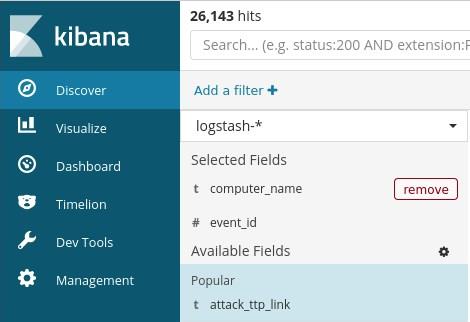\n\n## Task 2: Create an actionable visualization\n\nTo identify all users included in the dataset you can start by submitting an empty search, expanding **Available Fields** and then inspecting the **event_data.User** field. If you do you so will come across the below.\n\n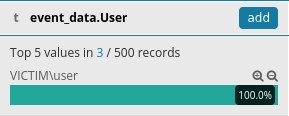\n\nDo you notice that *500 records* message? This is because, by default, results are limited to 500 records. You can change that by going to the **Management** tab and then clicking **Advanced Settings**, but let's create a visualization instead.\n\nTo do so, click on the **Visualize** tab and press the button with the cross.\n\n\n\nThen, click on **Data Table**.\n\n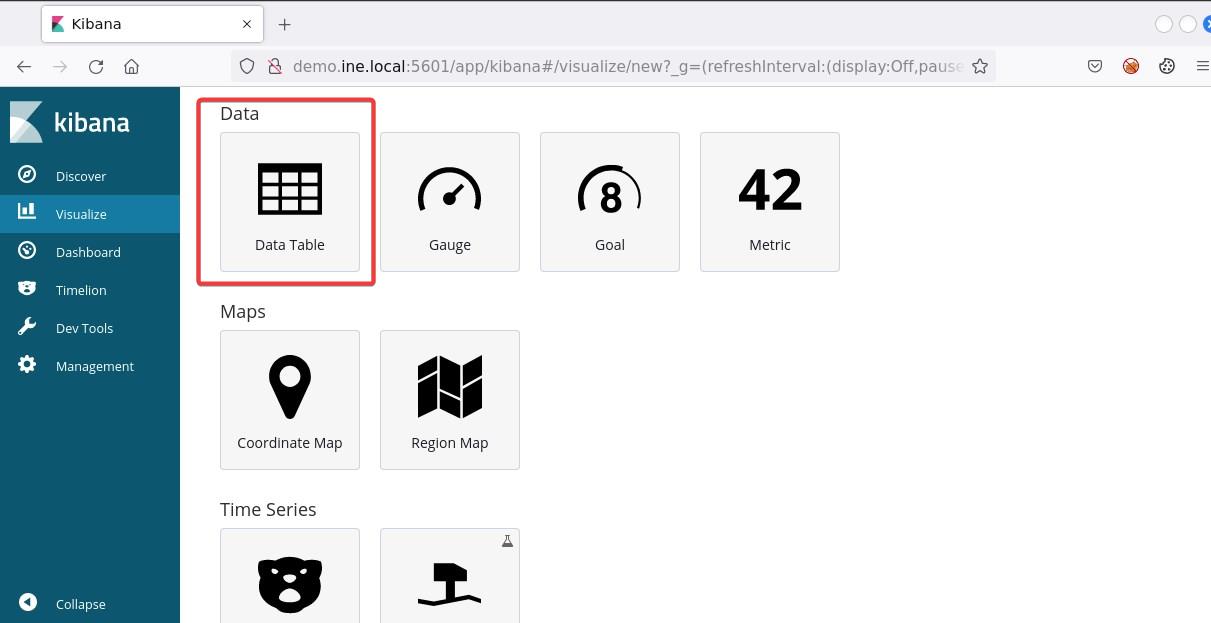\n\nNow, click on the **logstash-*** index...\n\n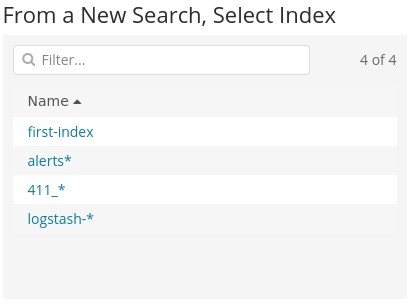\n\nand submit the search below.\n\n```\nevent_data.User:*\n```\n\nThe search above can be translated as **winlog.event_data.User:\"exists\"**. This means that it will provide us with all the documents that contain the specified field. To identify all users, we need to create an aggregation. To create one, click the **Split Rows** tab and choose **Terms** from the Aggregation drop-down menu. On the **Field** drop-down menu choose **winlog.event_data.User.keyword**. Finally, click the play button on your upper right.\n\n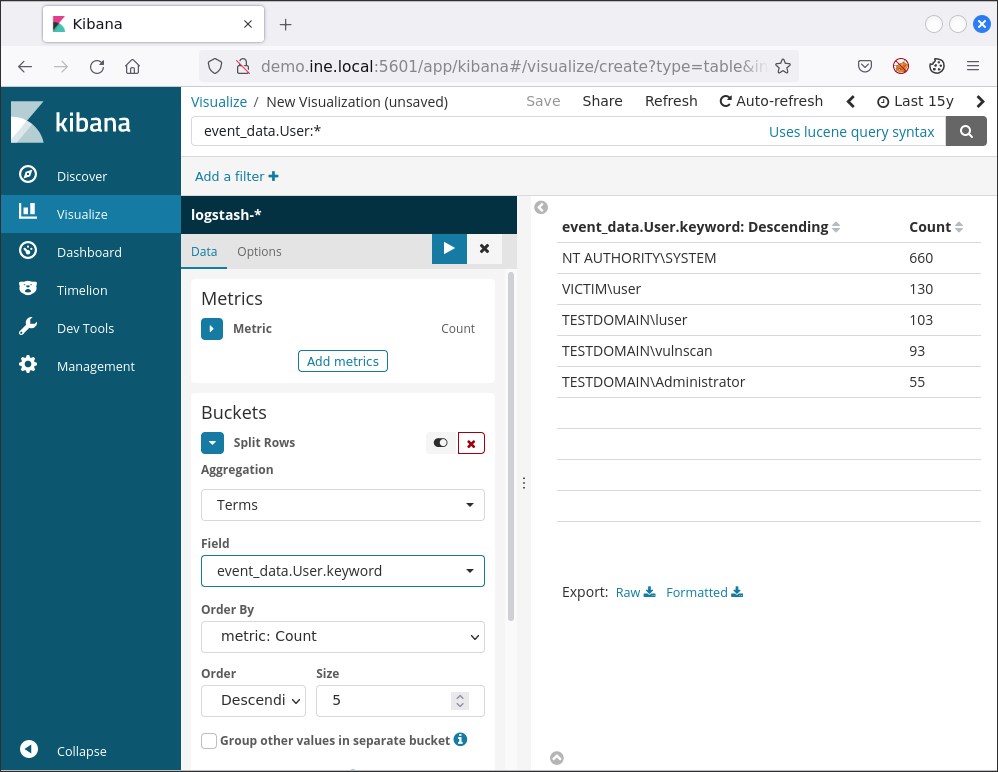\n\nYou should now see the below\n\n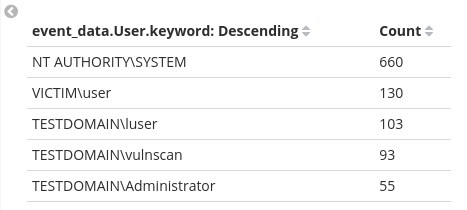\n\nThese results above do not contain all users, but only five of them. Why so? This is because of the default **Size** of the aggregation we created being five. To see all users we can specify a larger size like fifty (50) and then press the play button once again.\n\n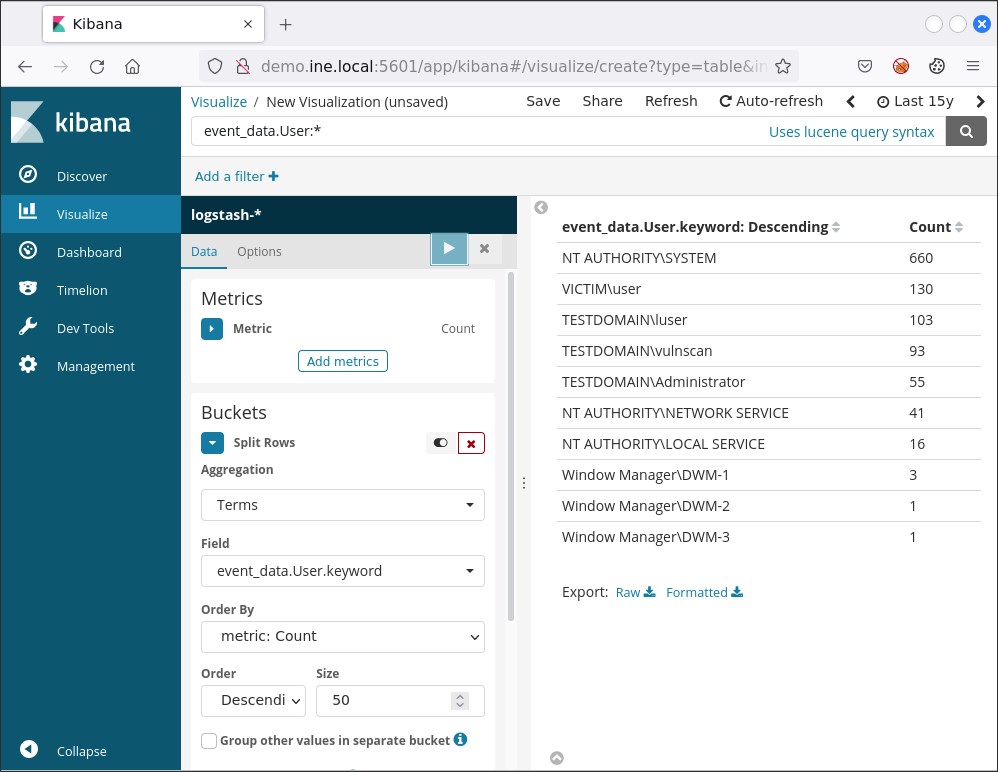\n\nYou can save this visualization if you like by pressing **Save** on your upper right and specifying a name.\n\nIf we would like a more actionable visualization we can focus, for example, on the [Windows Security Log Event ID 4776](https://docs.microsoft.com/en-us/windows/security/threat-protection/auditing/event-4776) and the [Windows Security Log Event ID 4625](https://docs.microsoft.com/en-us/windows/security/threat-protection/auditing/event-4625) events. Both of them can be used to identify unsuccessful logins.\n\nSuppose that we want to be able to see when unsuccessful login attempts occurred.\n\nFirst we have to create the appropriate ELK search.\n\nOne viable search is the below.\n\n```\n(event_id:4776 AND -keywords:\"Audit Success\") OR event_id:4625\n```\nEvent ID 4625 is related solely to unsuccessful login attempts, but Event ID 4776 is related to computers attempting to validate the credentials for an account. When a successful login attempt occurs the corresponding Event ID 4776 document will contain an \"*Audit Success*\" keyword and an Error Code \"*0x00*\" (see below).\n\n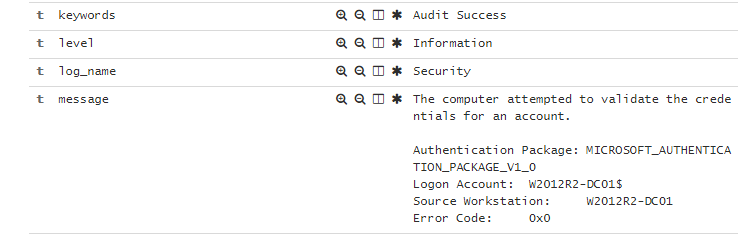\n\nObviously we want those out, hence the *AND -keywords:\"Audit Success\"* part of the search.\n\nTo create such a visualization we click **Visualize,** we press the button with the cross and we choose **Area**\n\n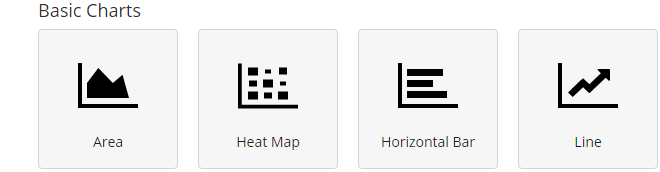\n\nThen, we click on the **logstash-*** index, we submit the search above and we click on **X-Axis**.\n\nThere, we choose **Date Histogram** on the **Aggregation** drop-down menu, **@timestamp** on the **Field** drop down menu and **Monthly** on the **Interval** drop-down menu. If you do so and press the play button, you should see the following.\n\n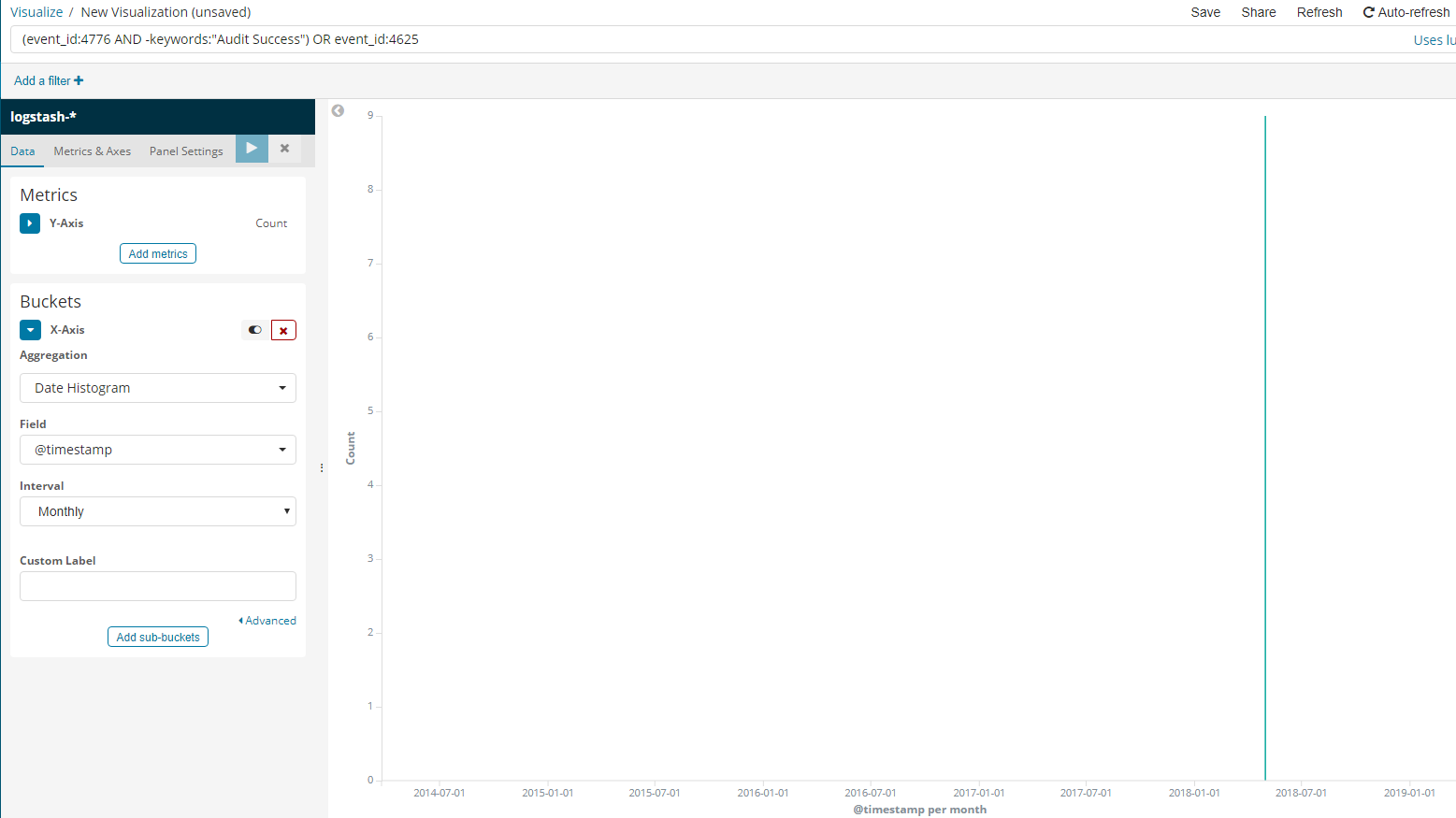\n\n## Task 3: Create a search to identify files that are named like system processes\n\nThe important fields to focus on are **event_data.Image** and **event_data.TargetFilename**.\n\nA viable search to detect files that are named like legitimate Windows processes but are located in a path other than the expected one is the below.\n\n```\n( event_data.Image:(\"*\\\\rundll32.exe\" \"*\\\\svchost.exe\" \n\"*\\\\wmiprvse.exe\" \"*\\\\wmiadap.exe\" \"*\\\\smss.exe\" \"*\\\\wininit.exe\" \"*\\\\taskhost.exe\" \"*\\\\lsass.exe\" \"*\\\\winlogon.exe\" \"*\\\\csrss.exe\" \"*\\\\services.exe\" \"*\\\\svchost.exe\" \"*\\\\lsm.exe\" \"*\\\\conhost.exe\" \"*\\\\dllhost.exe\" \"*\\\\dwm.exe\" \"*\\\\spoolsv.exe\" \"*\\\\wuauclt.exe\" \"*\\\\taskhost.exe\" \"*\\\\taskhostw.exe\" \"*\\\\fontdrvhost.exe\" \"*\\\\searchindexer.exe\" \"*\\\\searchprotocolhost.exe\" \"*\\\\searchfilterhost.exe\" \"*\\\\sihost.exe\") AND -event_data.Image:(\"*\\\\system32\\\\*\" \"*\\\\syswow64\\\\*\" \"*\\\\winsxs\\\\*\") ) OR ( event_data.TargetFilename:(\"*\\\\rundll32.exe\" \"*\\\\svchost.exe\" \"*\\\\wmiprvse.exe\" \"*\\\\wmiadap.exe\" \"*\\\\smss.exe\" \"*\\\\wininit.exe\" \"*\\\\taskhost.exe\" \"*\\\\lsass.exe\" \"*\\\\winlogon.exe\" \"*\\\\csrss.exe\" \"*\\\\services.exe\" \"*\\\\svchost.exe\" \"*\\\\lsm.exe\" \"*\\\\conhost.exe\" \"*\\\\dllhost.exe\" \"*\\\\dwm.exe\" \"*\\\\spoolsv.exe\" \"*\\\\wuauclt.exe\" \"*\\\\taskhost.exe\" \"*\\\\taskhostw.exe\" \"*\\\\fontdrvhost.exe\" \"*\\\\searchindexer.exe\" \"*\\\\searchprotocolhost.exe\" \"*\\\\searchfilterhost.exe\" \"*\\\\sihost.exe\") AND -event_data.TargetFilename:(\"*\\\\system32\\\\*\" \"*\\\\syswow64\\\\*\" \"*\\\\winsxs\\\\*\") )\n```\n\n*AND -event_data.Image* is excluding the expected paths.\n\n*event_data.TargetFilename* is used in case the file included in the event_data.Image field interacted with another file. For example, if PowerShell downloaded a file named 65536.exe you would see the below.\n\n\u200b\t**event_data.Image**: C:\\\\Windows\\\\SysWOW64\\\\WindowsPowerShell\\\\v1.0\\\\powershell.exe\n\n\u200b\t**event_data.TargetFilename**: C:\\\\Users\\\\PhisedUser\\\\AppData\\\\Local\\\\Temp\\\\65536.exe\n\nIf you submit the search above, you should see 6 hits.\n\n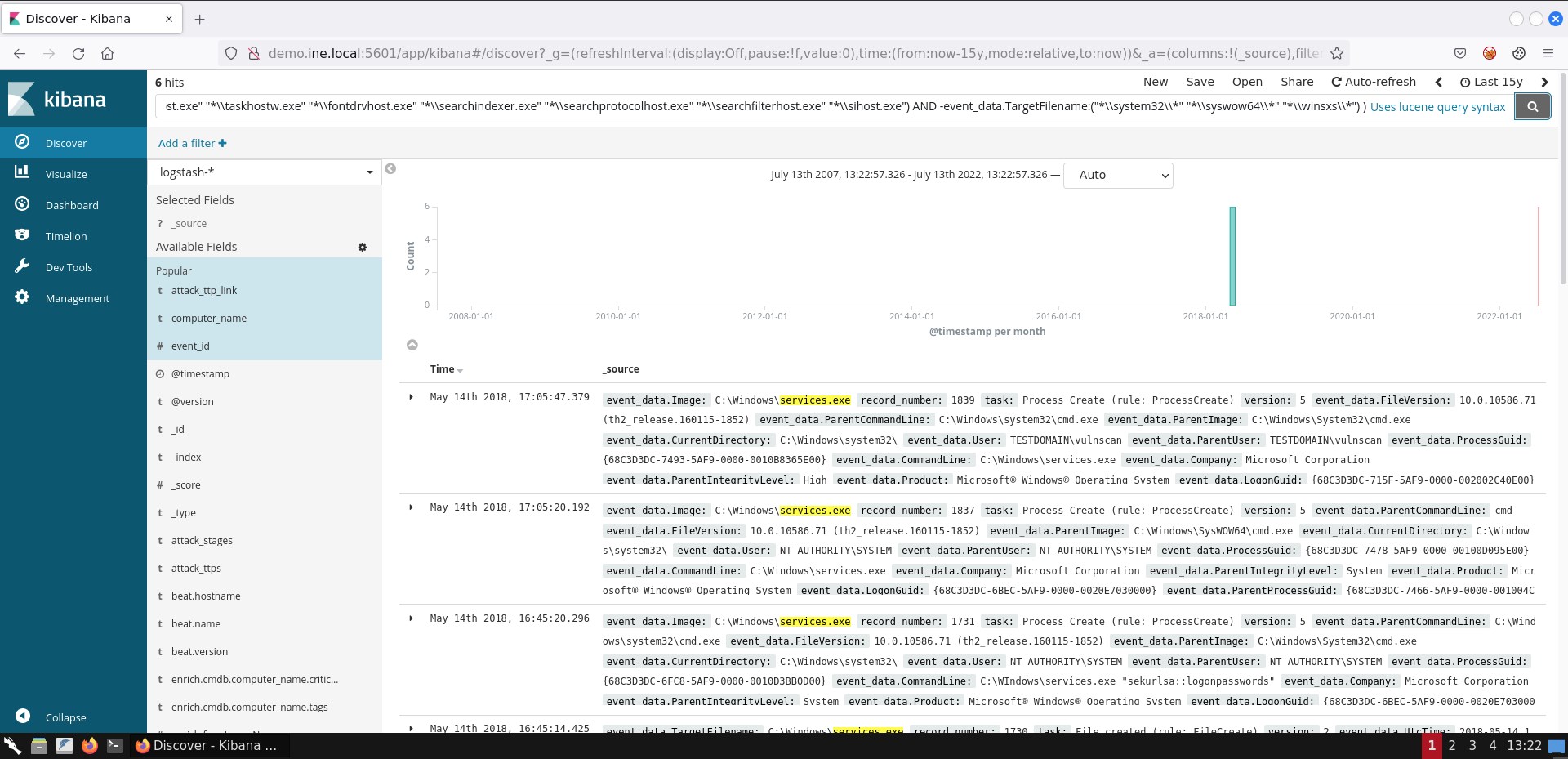\n\nIf you are not able to see the exact same result representation, you can add the respective fields by following the steps mentioned in task 1.\n\n## Task 4: Create a search to identify suspicious services interacting with an executable from the Windows folder\n\nWhen it comes to suspicious service detection the [Windows Security Log Event ID 4697](https://docs.microsoft.com/en-us/windows/security/threat-protection/auditing/event-4697) and the [Windows Event ID 7045](https://logrhythm.com/blog/detecting-rogue-processes-in-the-services-session/) events will prove useful. The same applies for Autoruns logs.\n\nA viable search to identify suspicious services interacting with an executable from the windows folder is the following.\n\n```\n(event_id:(\"4697\" \"7045\") OR (log_name:Autoruns AND event_data.Category:Services) ) AND \nevent_data.CommandLine.keyword:/.*%[s|S][y|Y][s|S][t|T][e|E][m|M][r|R][o|O][o|O][t|T]%\\\\[^\\\\]*\\.exe/ AND -event_data.CommandLine:(*paexe* *psexesvc* *winexesvc* *remcomsvc*)\n```\n\n*event_id:(\"4697\" \"7045\")* is used to identify services being installed.\n\n*log_name:Autoruns AND event_data.Category:Services* is used to identify auto-start services detected by the [Autoruns](https://docs.microsoft.com/en-us/sysinternals/downloads/autoruns) MS tool. [*event_data.Category:Services* is used to limit the Autorun-derived documents to those only related to services]\n\n``-event_data.CommandLine:(*paexe* *psexesvc* *winexesvc* *remcomsvc*)`` excludes services that interact with expected Windows executables inside the Windows folder.\n\nIf you submit the search above, you should see 7 hits.\n\n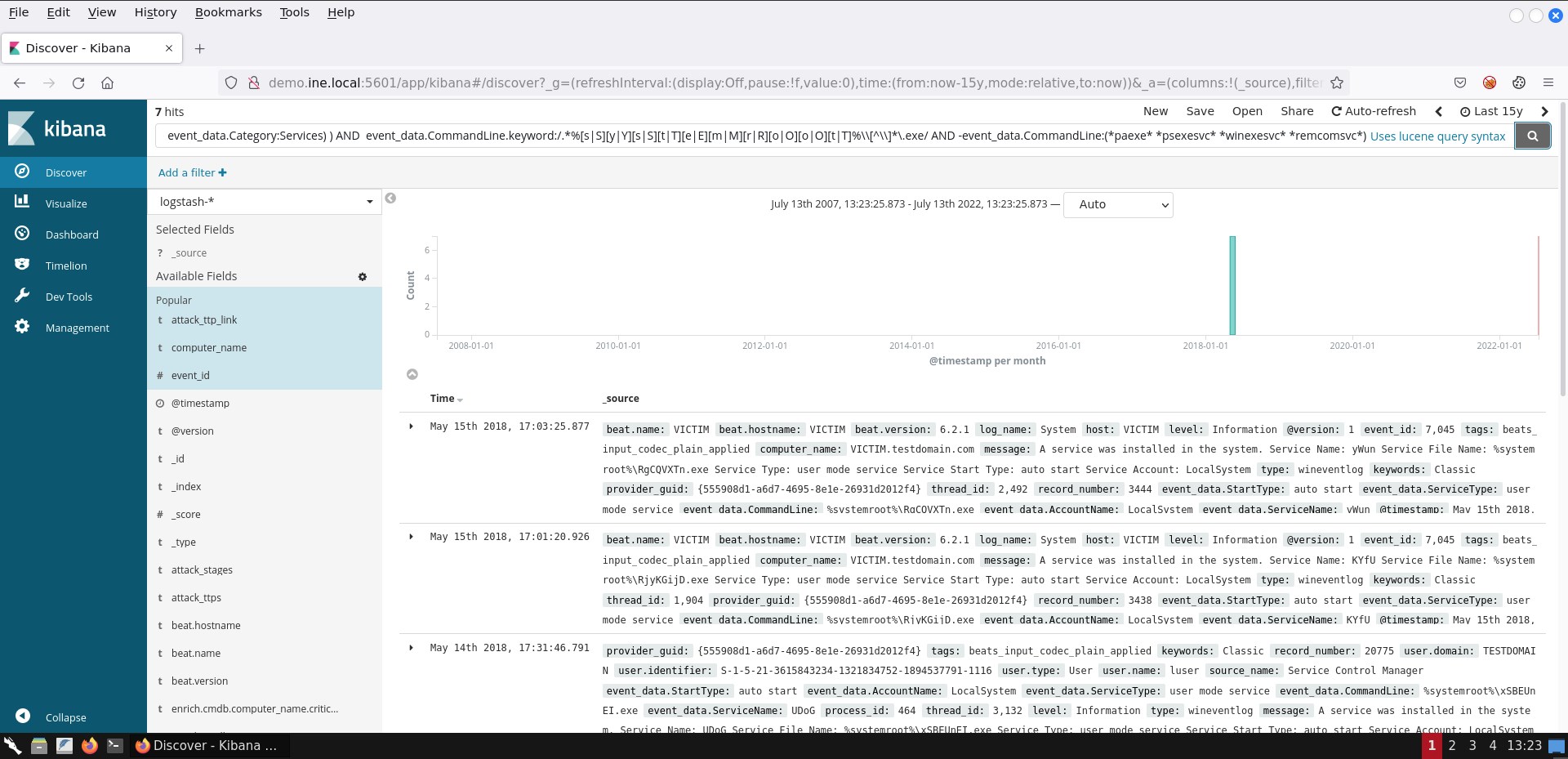\n\n## Task 5: Create a search to identify suspicious code injection\n\nSysmon contains a *CreateRemoteThread* event (Event ID 8) that detects when a process creates a thread in another process. Malware usually do that so that the target process can load a malicious DLL (whose path is written in the virtual address space of the target process) or a malicious portable executable.\n\n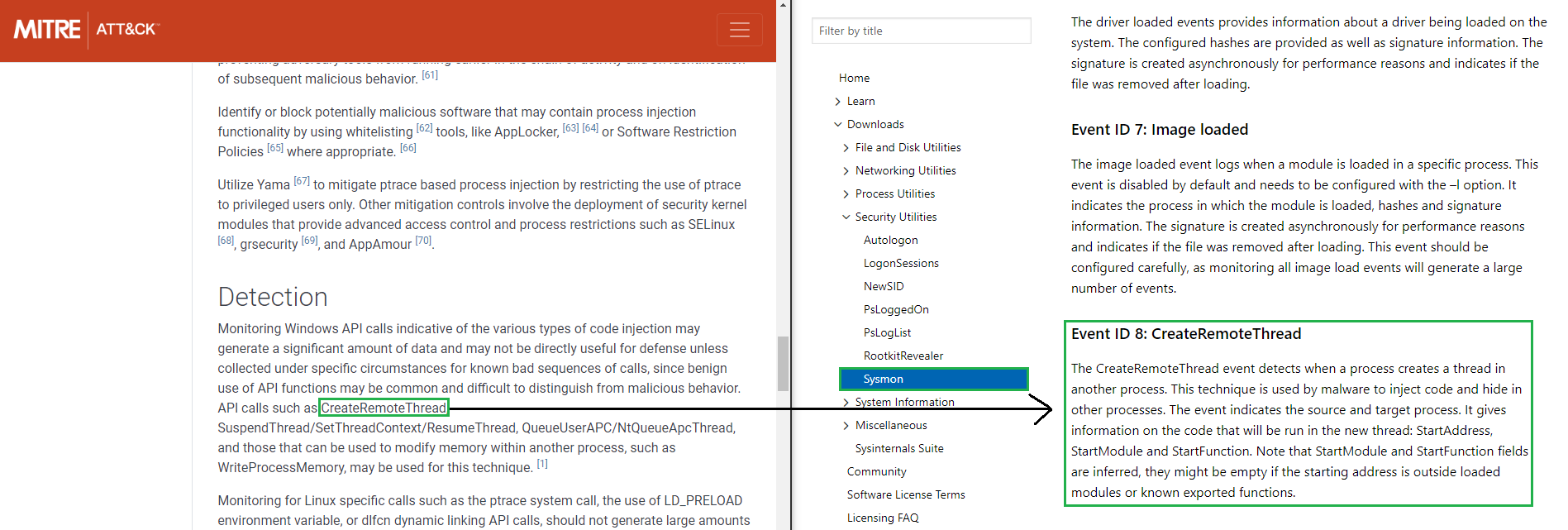\n\nIt should be noted that remote threads can be created on a Windows system for legitimate purposes as well. Such an example is *EtwpNotificationThread*, which is related to threads (thread entry points actually) being \"created\" in the context of a process, so that certain tasks can be performed on behalf of the kernel.\n\nTo conclude the task, a viable search to identify suspicious code injection (based on Sysmon's Event ID 8) is the following.\n\n```\nevent_id:8 AND source_name:\"Microsoft-Windows-Sysmon\" AND -(event_data.SourceImage:\"*\\\\VBoxTray.exe\" AND event_data.TargetImage:\"*\\\\csrss.exe\") AND -(event_data.StartFunction:EtwpNotificationThread AND event_data.SourceImage:\"*\\\\rundll32.exe\")\n```\nIf you submit the search above, you should see 53 hits.\n\n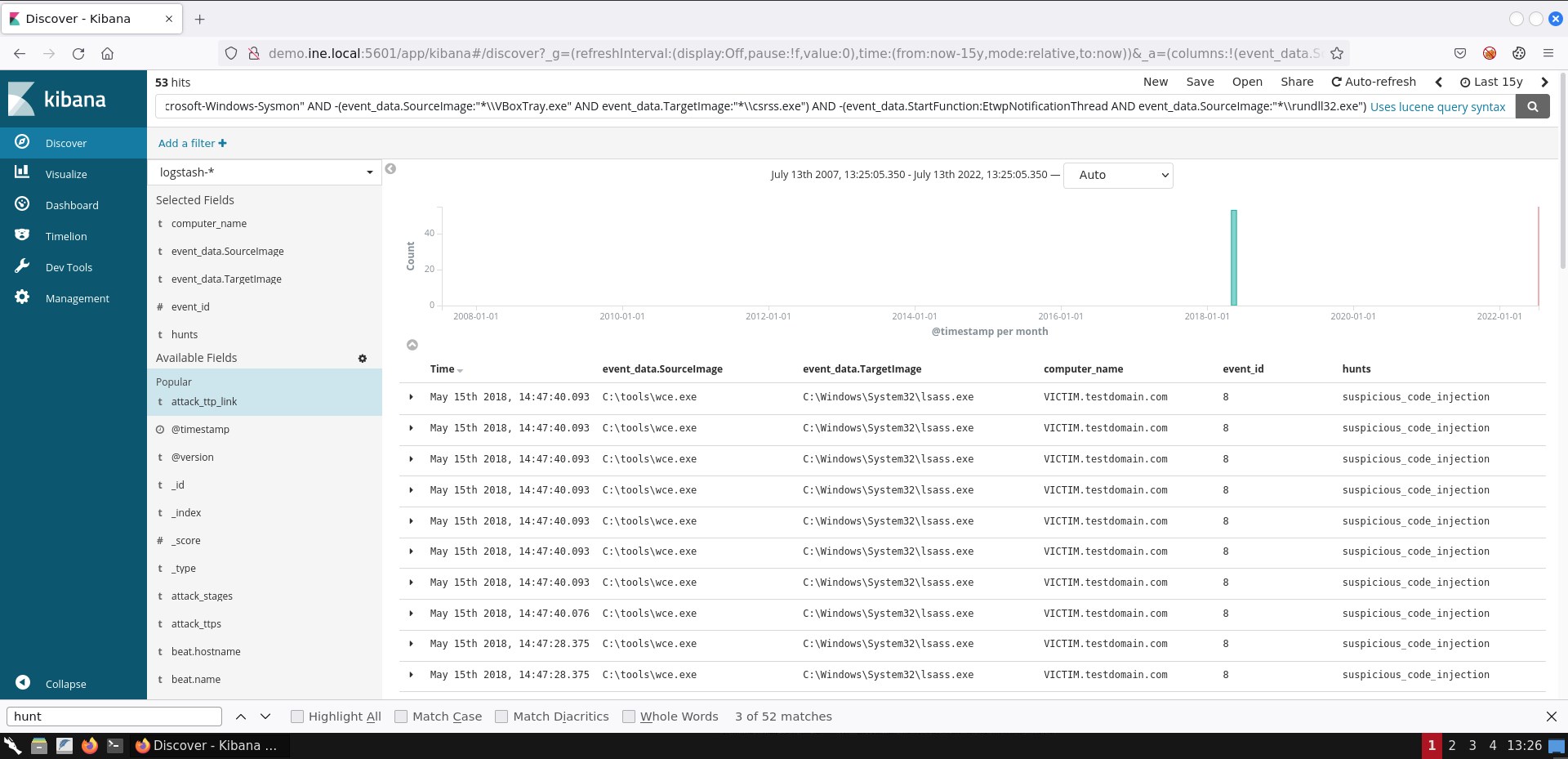\n\nIf you are not able to see the exact same result representation, you can add the respective fields by following the steps mentioned in task 1.\n\n[*wce*](https://www.ampliasecurity.com/research/wcefaq.html) that you see on the **event_data.SourceImage** field is a known [Credential Dumping](https://attack.mitre.org/techniques/T1003/) tool that targets the Local Security Authority Subsystem Service (LSASS) process (whose memory contains a variety of credentials).\n\n## Task 6: Create a search to identify possible privilege escalation via weak service permissions\n\nAs mentioned in this task's description attackers will interact with the **sc** Windows executable in order to identify if a service has weak permissions and if they have any kind of privileged access over it.\n\nIf they have enough privileges, attackers may also attempt to specify an executable of their own to be executed by the insufficiently secure service. This can be done again through the **sc** executable and the **config** option (binPath =Kali Machine
\n
Below, you can find solutions for every task of this lab. Remember though, that you can follow your own strategy (which may be different from the one explained in the following lab.
\nOnce you are connected to Kibana, first change the time picker to Last 15 years and then submit an empty search. You should come across the following.
\n
As we can see, the documents (or events if you like) table consists of two columns only. We can enhance our understanding of the gathered events by adding more fields. To do so, we simply click on Available Fields and then click the add button that appears next to each field upon mouse hover.
\n
A good start would be adding the event_id field and the computer_name field. Then, the results will look like the ones depicted below.
\n
Go through each available field and experiment with how documents/events are presented until you feel comfortable enough to start your analysis.
\nAt any time, you can remove an added field simply by hovering over it and pressing the remove button that appears.
\n
To identify all users included in the dataset you can start by submitting an empty search, expanding Available Fields and then inspecting the event_data.User field. If you do you so will come across the below.
\n
Do you notice that 500 records message? This is because, by default, results are limited to 500 records. You can change that by going to the Management tab and then clicking Advanced Settings, but let's create a visualization instead.
\nTo do so, click on the Visualize tab and press the button with the cross.
\n
Then, click on Data Table.
\n
Now, click on the logstash-* index...
\n
and submit the search below.
\nevent_data.User:*The search above can be translated as winlog.event_data.User:\"exists\". This means that it will provide us with all the documents that contain the specified field. To identify all users, we need to create an aggregation. To create one, click the Split Rows tab and choose Terms from the Aggregation drop-down menu. On the Field drop-down menu choose winlog.event_data.User.keyword. Finally, click the play button on your upper right.
\n
You should now see the below
\n
These results above do not contain all users, but only five of them. Why so? This is because of the default Size of the aggregation we created being five. To see all users we can specify a larger size like fifty (50) and then press the play button once again.
\n
You can save this visualization if you like by pressing Save on your upper right and specifying a name.
\nIf we would like a more actionable visualization we can focus, for example, on the Windows Security Log Event ID 4776 and the Windows Security Log Event ID 4625 events. Both of them can be used to identify unsuccessful logins.
\nSuppose that we want to be able to see when unsuccessful login attempts occurred.
\nFirst we have to create the appropriate ELK search.
\nOne viable search is the below.
\n(event_id:4776 AND -keywords:\"Audit Success\") OR event_id:4625
Obviously we want those out, hence the AND -keywords:\"Audit Success\" part of the search.
\nTo create such a visualization we click Visualize, we press the button with the cross and we choose Area
\n
Then, we click on the logstash-* index, we submit the search above and we click on X-Axis.
\nThere, we choose Date Histogram on the Aggregation drop-down menu, @timestamp on the Field drop down menu and Monthly on the Interval drop-down menu. If you do so and press the play button, you should see the following.
\n
The important fields to focus on are event_data.Image and event_data.TargetFilename.
\nA viable search to detect files that are named like legitimate Windows processes but are located in a path other than the expected one is the below.
\n( event_data.Image:(\"*\\\\rundll32.exe\" \"*\\\\svchost.exe\" \n\"*\\\\wmiprvse.exe\" \"*\\\\wmiadap.exe\" \"*\\\\smss.exe\" \"*\\\\wininit.exe\" \"*\\\\taskhost.exe\" \"*\\\\lsass.exe\" \"*\\\\winlogon.exe\" \"*\\\\csrss.exe\" \"*\\\\services.exe\" \"*\\\\svchost.exe\" \"*\\\\lsm.exe\" \"*\\\\conhost.exe\" \"*\\\\dllhost.exe\" \"*\\\\dwm.exe\" \"*\\\\spoolsv.exe\" \"*\\\\wuauclt.exe\" \"*\\\\taskhost.exe\" \"*\\\\taskhostw.exe\" \"*\\\\fontdrvhost.exe\" \"*\\\\searchindexer.exe\" \"*\\\\searchprotocolhost.exe\" \"*\\\\searchfilterhost.exe\" \"*\\\\sihost.exe\") AND -event_data.Image:(\"*\\\\system32\\\\*\" \"*\\\\syswow64\\\\*\" \"*\\\\winsxs\\\\*\") ) OR ( event_data.TargetFilename:(\"*\\\\rundll32.exe\" \"*\\\\svchost.exe\" \"*\\\\wmiprvse.exe\" \"*\\\\wmiadap.exe\" \"*\\\\smss.exe\" \"*\\\\wininit.exe\" \"*\\\\taskhost.exe\" \"*\\\\lsass.exe\" \"*\\\\winlogon.exe\" \"*\\\\csrss.exe\" \"*\\\\services.exe\" \"*\\\\svchost.exe\" \"*\\\\lsm.exe\" \"*\\\\conhost.exe\" \"*\\\\dllhost.exe\" \"*\\\\dwm.exe\" \"*\\\\spoolsv.exe\" \"*\\\\wuauclt.exe\" \"*\\\\taskhost.exe\" \"*\\\\taskhostw.exe\" \"*\\\\fontdrvhost.exe\" \"*\\\\searchindexer.exe\" \"*\\\\searchprotocolhost.exe\" \"*\\\\searchfilterhost.exe\" \"*\\\\sihost.exe\") AND -event_data.TargetFilename:(\"*\\\\system32\\\\*\" \"*\\\\syswow64\\\\*\" \"*\\\\winsxs\\\\*\") )AND -event_data.Image is excluding the expected paths.
\nevent_data.TargetFilename is used in case the file included in the event_data.Image field interacted with another file. For example, if PowerShell downloaded a file named 65536.exe you would see the below.
\n\u200b event_data.Image: C:\\Windows\\SysWOW64\\WindowsPowerShell\\v1.0\\powershell.exe
\n\u200b event_data.TargetFilename: C:\\Users\\PhisedUser\\AppData\\Local\\Temp\\65536.exe
\nIf you submit the search above, you should see 6 hits.
\n
If you are not able to see the exact same result representation, you can add the respective fields by following the steps mentioned in task 1.
\nWhen it comes to suspicious service detection the Windows Security Log Event ID 4697 and the Windows Event ID 7045 events will prove useful. The same applies for Autoruns logs.
\nA viable search to identify suspicious services interacting with an executable from the windows folder is the following.
\n(event_id:(\"4697\" \"7045\") OR (log_name:Autoruns AND event_data.Category:Services) ) AND \nevent_data.CommandLine.keyword:/.*%[s|S][y|Y][s|S][t|T][e|E][m|M][r|R][o|O][o|O][t|T]%\\\\[^\\\\]*\\.exe/ AND -event_data.CommandLine:(*paexe* *psexesvc* *winexesvc* *remcomsvc*)event_id:(\"4697\" \"7045\") is used to identify services being installed.
\nlog_name:Autoruns AND event_data.Category:Services is used to identify auto-start services detected by the Autoruns MS tool. [event_data.Category:Services is used to limit the Autorun-derived documents to those only related to services]
\n-event_data.CommandLine:(*paexe* *psexesvc* *winexesvc* *remcomsvc*) excludes services that interact with expected Windows executables inside the Windows folder.
If you submit the search above, you should see 7 hits.
\n
Sysmon contains a CreateRemoteThread event (Event ID 8) that detects when a process creates a thread in another process. Malware usually do that so that the target process can load a malicious DLL (whose path is written in the virtual address space of the target process) or a malicious portable executable.
\n
It should be noted that remote threads can be created on a Windows system for legitimate purposes as well. Such an example is EtwpNotificationThread, which is related to threads (thread entry points actually) being \"created\" in the context of a process, so that certain tasks can be performed on behalf of the kernel.
\nTo conclude the task, a viable search to identify suspicious code injection (based on Sysmon's Event ID 8) is the following.
\nevent_id:8 AND source_name:\"Microsoft-Windows-Sysmon\" AND -(event_data.SourceImage:\"*\\\\VBoxTray.exe\" AND event_data.TargetImage:\"*\\\\csrss.exe\") AND -(event_data.StartFunction:EtwpNotificationThread AND event_data.SourceImage:\"*\\\\rundll32.exe\")
If you are not able to see the exact same result representation, you can add the respective fields by following the steps mentioned in task 1.
\nwce that you see on the event_data.SourceImage field is a known Credential Dumping tool that targets the Local Security Authority Subsystem Service (LSASS) process (whose memory contains a variety of credentials).
\nAs mentioned in this task's description attackers will interact with the sc Windows executable in order to identify if a service has weak permissions and if they have any kind of privileged access over it.
\nIf they have enough privileges, attackers may also attempt to specify an executable of their own to be executed by the insufficiently secure service. This can be done again through the sc executable and the config option (binPath =
We can search for possible privilege escalation via weak service permissions as follows.
\nevent_data.Image:\"*\\\\sc.exe\" AND (event_data.CommandLine:(*start* *sdshow*) OR (event_data.CommandLine:*config* AND event_data.CommandLine:*binPath*)) AND event_data.IntegrityLevel:MediumIf you submit the search above, you should see 3 hits.
\n
If you are not able to see the exact same result representation, you can add the respective fields by following the steps mentioned in task 1.
\nAs already mentioned in this task's description we can focus on any tscon invocation. More specifically, we are interested in any tscon invocation with SYSTEM-level privileges.
\nA viable search to identify possible Windows session hijacking via the described attacker technique is the below.
\nevent_data.Image:\"*\\\\tscon.exe\" AND event_data.User:\"NT AUTHORITY\\\\SYSTEM\"Alternatively, you can use the following search.
\nevent_data.Image:\"*\\\\tscon.exe\" AND (event_data.LogonId:0x3e7 OR event_data.SubjectLogonId:0x3e7 OR event_data.User:\"NT AUTHORITY\\\\SYSTEM\")
If you are not able to see the exact same result representation, you can add the respective fields by following the steps mentioned in task 1.
\nIt is quite trivial to create a search to detect the whoami command being executed with SYSTEM-level privileges.
\nA viable search is the following.
\nevent_data.Image:\"*\\\\whoami.exe\" AND (event_data.LogonId:0x3e7 OR event_data.SubjectLogonId:0x3e7 OR event_data.User:\"NT AUTHORITY\\\\SYSTEM\")If you submit the search above, you should see 4 hits.
\n
If you are not able to see the exact same result representation, you can add the respective fields by following the steps mentioned in task 1.
\nSysmon's Event ID 7: Image loaded can be used to monitor the DLLs being loaded by a specific process. Thankfully this event contains information about the library's signature in its data (Signature entry).
\nA viable search to identify LSASS loading a library not signed by Microsoft is the following.
\nevent_id:7 AND event_data.Image:\"*\\\\lsass.exe\" AND -event_data.Signature:*Microsoft*
If you are not able to see the exact same result representation, you can add the respective fields by following the steps mentioned in task 1.
\nThe DLL being loaded (wceaux.dll) is the one the credential dumping tool you identified in task 5 uses to gather or alter credentials.
\nAdditional Resources:
\n", "flags": [], "min_points_to_pass": null, "access_type": "default", "user_status": "unstarted", "user_lab_status": null, "user_status_modified": null, "user_flags": [], "global_running_session": null }